
Flow Builder
Flow Builder
Section titled “Flow Builder”Builder Overview
Section titled “Builder Overview”The Grailgun builder is a visual editor that allows you to create bot interaction scenarios with users without writing code. The builder uses a Block (node) based approach and connections between them to construct dialogue logic.
Main Interface Elements
Section titled “Main Interface Elements”Block Panel
Section titled “Block Panel”To the left of the canvas is a panel with a list of Blocks. When you click on a Block button, the corresponding block will be added to the canvas
Workspace (Canvas)
Section titled “Workspace (Canvas)”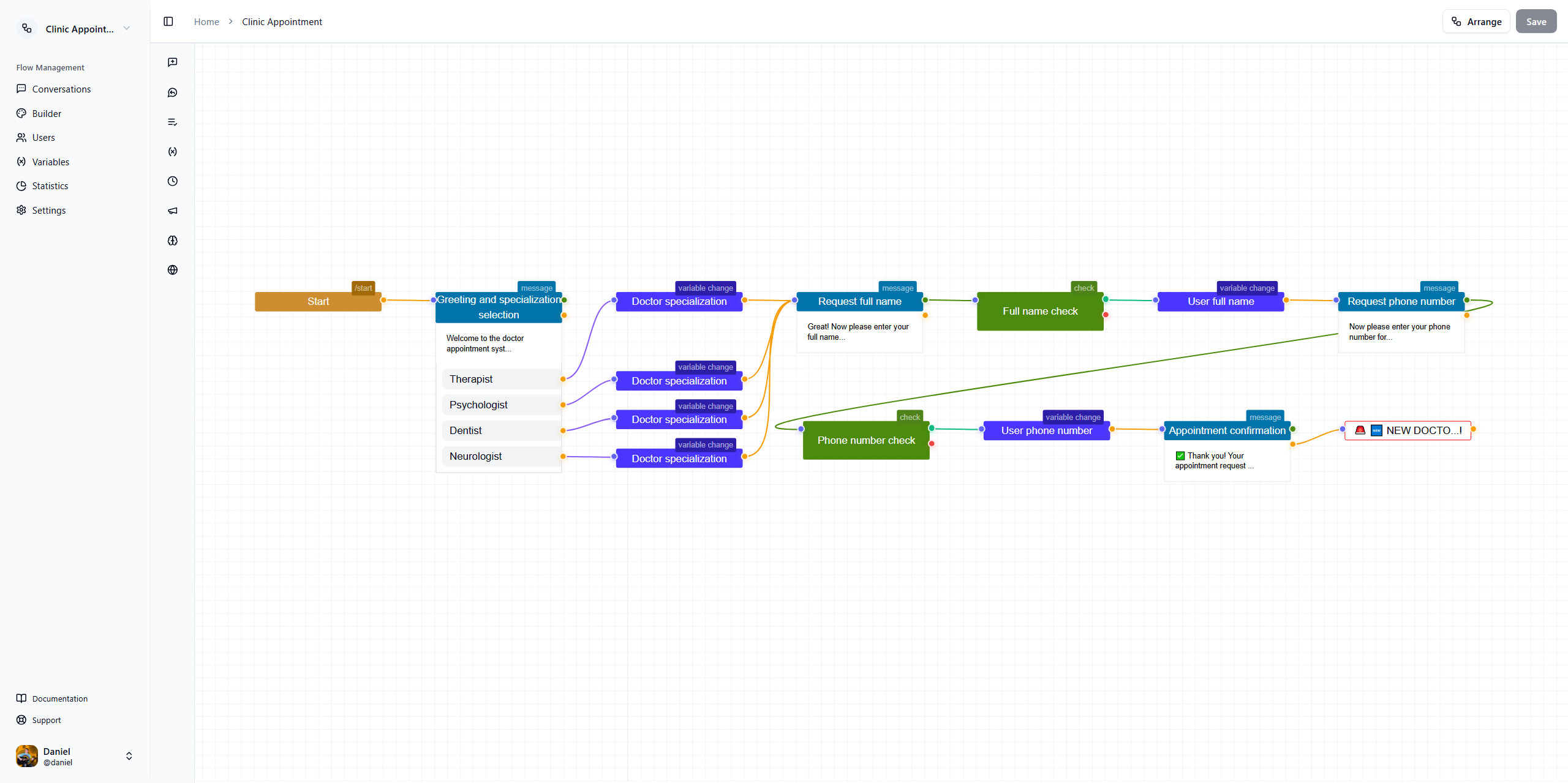
The central part of the builder is the workspace (canvas) where Blocks are placed and connected. Workspace features:
- Navigate the canvas using the pressed middle mouse button or holding the spacebar
- Zoom using the mouse wheel
- Automatic Block alignment when moving
Working with Blocks
Section titled “Working with Blocks”Adding Blocks
Section titled “Adding Blocks”To add a new Block:
- Select a Block from the panel to the left of the canvas
- The new Block will be added to the canvas
Moving Blocks
Section titled “Moving Blocks”- To move a Block, press and hold the left mouse button on the Block and drag it to the desired location
- When moving, connections between Blocks are preserved
Connecting Blocks
Section titled “Connecting Blocks”To create a connection between Blocks:
- Hover the cursor over the connection point (port) of the source Block
- Press and hold the left mouse button and drag the line to the target Block port
- Release the mouse button to create the connection
Editing a Block
Section titled “Editing a Block”To edit a Block:
- Double-click the Block to select it
- A form with Block parameters will open for editing
Copying Blocks
Section titled “Copying Blocks”- Select a Block by clicking or mass selection by dragging the mouse cursor with the left button pressed
- Press Ctrl+C (Cmd+C for MacOS) keyboard shortcut
- Navigate the canvas to where you want to place Block copies, or go to another bot’s canvas
- Press Ctrl+V (Cmd+V for MacOS) keyboard shortcut
If there are already identical Blocks on the canvas, the system will offer to replace or duplicate them. When duplicating Blocks with connections, you’ll be offered a choice of connection organization:
- “Keep to existing” - will connect originals and duplicated Blocks
- “Duplicate to copied” - will keep connections only between duplicated Blocks
- “Destroy” - will create duplicated Blocks without connections
Deleting a Block
Section titled “Deleting a Block”To delete a Block:
- Select a Block by clicking or mass selection by dragging the mouse cursor with the left button pressed
- Press the Delete key on the keyboard
Block Types
Section titled “Block Types”Various types of Blocks are available in the Grailgun builder for constructing scenarios:
The starting point of the scenario where the dialogue begins. This Block cannot be deleted or moved to maintain the integrity of the bot scenario.
Message
Section titled “Message”The main dialogue element that allows you to send messages to the user. Learn more about the “Message” Block
The Await block allows you to create a delay between Block executions
Saving and Testing
Section titled “Saving and Testing”Saving Changes
Section titled “Saving Changes”Currently, saving occurs automatically with every change on the canvas
Testing the Bot
Section titled “Testing the Bot”After making changes to the canvas, you can test the bot:
- Find your bot in Telegram
- Send it a message with the text “/start” to begin the dialogue
Tips and Recommendations
Section titled “Tips and Recommendations”- Try to organize Blocks logically, positioning related elements nearby
- Use zoom for working with large scenarios
- Test the scenario after making significant changes
Frequently Asked Questions
Section titled “Frequently Asked Questions”How do I undo the last action?
Section titled “How do I undo the last action?”The current version of the builder does not have an undo function. It’s recommended to save changes regularly.
Can I export/import scenarios?
Section titled “Can I export/import scenarios?”Currently, the copy and paste function for Blocks between bots is implemented.
- Copy one bot’s scenario
- Go to another bot’s Builder
- Paste the copied Blocks onto the canvas